Huawei FusionSolar App Setup & Commissioning Guide (2026)

Step-by-step Huawei FusionSolar app setup: download, account creation, inverter commissioning over local Wi-Fi, grid code, DEWA tariffs, alerts and energy reports.
The Huawei FusionSolar Smart PV Management System is the cloud platform that turns a SUN2000 inverter and a LUNA2000 battery into a fully monitored, remotely manageable solar plant. Whether you own a 5 kW rooftop system in Dubai or supervise a fleet of 200 kW commercial plants across the GCC, FusionSolar is where you commission devices, set the grid code, configure tariffs, watch alerts in real time and pull energy reports for billing or audit.
This guide walks you through a complete Huawei FusionSolar app setup from a freshly unboxed inverter to a live cloud plant showing today's generation curve. We will cover Owner versus Installer accounts, the WLAN-FE Plus and 4G Smart Dongles, local Wi-Fi commissioning, the Quick Settings wizard (grid code, export limit, battery mode), DEWA tariff configuration for accurate revenue, alerts that actually matter and the dashboard sections you will use every week. The same flow applies to UAE, Saudi Arabia, Oman, Bahrain, Qatar and Kuwait — only the grid code differs.
For after-sales help, our contact page lists our phone and email.
Products mentioned in this article
Huawei 5 kW Single-Phase On-Grid Solar Inverter SUN2000-5KTL-L1


- Max DC Voltage
- 600 V
- Startup Voltage
- 100 V
- MPPT Voltage Range
- 90-560 V
Price incl. VATAED 2,801
Huawei 15 kWh 450 V Lithium Solar Battery LUNA2000-15-S0

- Usable Capacity
- 15 kWh
- Nominal Voltage (Single-Phase)
- 450 V
- Operating Voltage (Single-Phase)
- 350-560 V
Price incl. VATAED 8,777
Huawei 15 kWh Lithium Solar Battery LUNA2000-15-S1

- Usable Capacity
- 15.0 kWh
- Battery Modules
- LUNA2000-5-E1 (5kWh) / LUNA2000-7-E1 (6.9kWh)
- Operating Voltage (Single-Phase)
- 350-560 V
Price incl. VATAED 8,777
Huawei 8 kW Three-Phase On-Grid Solar Inverter SUN2000-8KTL-M1

- Rated AC Power
- 8000 W
- Max DC Voltage
- 1100 V
- Operating Voltage Range
- 140-980 V
Price incl. VATAED 4,616
Huawei Centralized Data Logger SmartLogger3000A
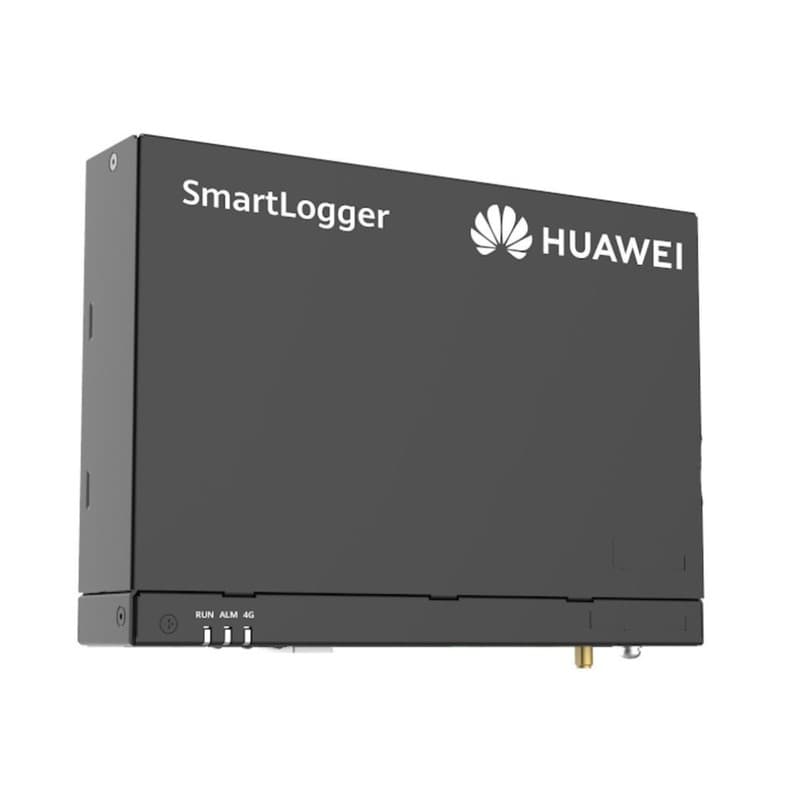
- Max Inverters Supported
- 80
- WAN Port
- 10/100/1000 Mbps
- LAN Port
- 10/100/1000 Mbps
Price incl. VATAED 1,200
1. What is FusionSolar?
FusionSolar is Huawei's end-to-end monitoring and asset-management platform for solar. There are two layers you will touch every day:
- FusionSolar mobile app — available on Android (Google Play and Huawei AppGallery) and iOS (App Store). Used for commissioning, daily monitoring, alerts and remote control.
- FusionSolar web portal — accessed at intl.fusionsolar.huawei.com (or your regional domain). Same data, larger screen, deeper reporting, multi-plant fleet view for installers.
Two user roles control what you can see and change:
- Owner — the homeowner or business that owns the plant. Reads dashboards, gets alerts, exports reports, can change tariff and basic settings.
- Installer — the commissioning engineer or EPC company. Can run Quick Settings, change grid code, push firmware, configure battery modes, manage many plants in one company account.
If you are the homeowner, you want an Owner account. If you are the installer, you want an Installer account under your company — and then you invite the owner once the plant is live.
2. Download and install the FusionSolar app
The app is free on every major store. Search for FusionSolar exactly — there are unofficial clones, so check the developer name reads Huawei Technologies Co., Ltd.
- Android (Google Play) — search "FusionSolar", install, allow location and Bluetooth permissions (needed for local Wi-Fi commissioning).
- Android (Huawei AppGallery) — same search, useful for devices without Google Mobile Services.
- iOS (App Store) — search "FusionSolar", install, allow Local Network access when prompted (required for the inverter hotspot handshake).
- Web portal — open intl.fusionsolar.huawei.com in any modern browser. The login is shared with the app, so you only create the account once.
On first launch the app asks for region. Pick Middle East for UAE/KSA/Oman/Qatar/Bahrain/Kuwait deployments — this routes your data to the correct regional Huawei cloud and pulls the right grid-code list.
3. Create your Owner account (step by step)
You can create the account before the inverter is even installed. Open the app, tap Sign Up, then choose Owner. The wizard asks for:
- Country / region — sets language, time zone, grid-code defaults.
- Mobile number — used for SMS verification and password reset. Use the country code, e.g. +971 50 xxx xxxx.
- Email address — primary login, also where alert summaries are sent.
- Full name — appears on plant ownership records and on the energy reports.
- Time zone — critical for tariff windows. UAE is GMT+4 (Gulf Standard Time), Saudi is GMT+3 (Arabia Standard Time).
- Password — minimum 8 characters, mixed case and a digit. FusionSolar enforces a 90-day rotation by default; you can extend in profile settings.
You will receive an SMS code and a confirmation email — verify both before moving on. Installers fill the same form plus a company name, company code and service area. The company account is what later lets you supervise multiple plants from a single dashboard.
4. Pre-commissioning checklist
Five minutes of preparation prevents an hour of trial and error on a hot rooftop. Before you climb up to the inverter, confirm:
- Smart Dongle fitted — every cloud-connected SUN2000 needs either a Smart Dongle-WLAN-FE Plus (Wi-Fi 2.4 GHz/5 GHz + Ethernet) or a Smart Dongle-4G (cellular, with SIM). The dongle plugs into the COM port and is what carries data to FusionSolar.
- Internet reachability — if you are using WLAN-FE Plus, confirm the home router has internet and you know the SSID and password. If you are using 4G, confirm the SIM is activated, has a data plan, and the local cellular signal at the inverter location is at least two bars.
- Grid code decided — you must know which country code applies. Examples: UAE-DEWA 2024, UAE-FEWA, UAE-ADDC, SEC G99 for KSA, Oman-OETC. The wrong grid code can cause export rejection or fines.
- Export limit known — DEWA and SEC small-scale rules allow export up to a defined cap. Have the limit (in kW or as % of inverter rating) ready.
- Inverter serial number — printed on the side label and also as a QR code. You will scan or type it when creating the plant.
- Phone fully charged — the commissioning flow takes 15–25 minutes; running out of battery mid-flow forces a restart.
5. Commissioning your inverter over local Wi-Fi
Every SUN2000 inverter has a built-in WLAN access point used for first-time commissioning. This is independent of the Smart Dongle and works even before any internet is configured.
- Power on the inverter — flip the DC isolator and the AC breaker. The LCD/LED should show standby.
- Find the inverter hotspot — on your phone's Wi-Fi list look for a network named SUN2000-xxxxxxxx (the x's are the last digits of the serial number).
- Connect — the default password is Changeme on most regional firmware (the wizard will force you to change it later).
- Open FusionSolar and tap Commissioning from the home screen (or Device Commissioning under the menu).
- Select your device — the app auto-detects the SUN2000-5KTL-L1 / 8KTL-M1 / 10KTL-M1 on the hotspot. Tap it.
- Log in as installer — username installer, password 00000a on a brand-new unit; the app immediately requires you to set a strong one.
You are now inside the inverter's commissioning menu and ready for Quick Settings.
6. Setting the grid code, export limit and battery mode
The Quick Settings wizard is a 5-step screen that decides whether your plant will run safely and legally for the next twenty years. Take your time here.
Grid Code
Pick from the searchable list — start typing DEWA, FEWA, SEC, OETC and the app filters down. Examples:
- UAE-DEWA 2024 — Dubai residential and commercial under 2 MW.
- UAE-FEWA — Northern Emirates rooftops.
- SEC G99 / SASO IEC 62116 — Saudi Arabia small-scale solar.
- Oman OETC — Sahim residential scheme.
The grid code sets voltage and frequency trip windows, anti-islanding behaviour and reactive-power response. The wrong code can fail your DEWA technical commissioning inspection.
Power Limits / Export Limit
If the utility allows full export, leave at default. If you have a zero-export or capped-export agreement, set the value here (e.g. 5 kW export cap on a 6 kW inverter). FusionSolar can curtail in real time from the inverter without an extra meter on the small-scale residential SKUs.
Battery Mode (LUNA2000)
If you have a LUNA2000-5/10/15-S0 or LUNA2000-15-S1 battery, pick the working mode:
- Maximum Self-Consumption — default for most UAE villas. PV charges battery first, then loads, then exports surplus.
- Time-Of-Use (TOU) — charge from grid in cheap hours, discharge in expensive hours. Useful in markets with slab tariffs or future TOU.
- Fully Fed to Grid — feed all PV to grid, battery untouched. Rare in residential.
- Backup priority — reserve a minimum SOC (e.g. 30%) for outage support.
Anti-PID and AFCI
Run the AFCI self-test from the app — it takes 30 seconds and confirms the arc-fault detection circuit is healthy. Leave Anti-PID on default unless your panel manufacturer specifies otherwise.
7. Adding your plant to the FusionSolar cloud
With local commissioning done, the next step is registering the plant in the cloud so it shows up on your dashboard from anywhere in the world.
- Back on the FusionSolar home screen tap Add Plant.
- Scan the QR code on the inverter or Smart Dongle, or type the serial number manually.
- Fill the plant details — plant name (e.g. "Al Barsha Villa"), address (used for solar irradiation modelling), installed capacity in kWp (sum of all panel ratings), time zone and commissioning date.
- Pick the plant type — Residential, Commercial or Utility. This sets sensible default alert thresholds.
- Save. Within 2–5 minutes the Smart Dongle establishes its outbound connection and the plant turns from offline grey to online green on your dashboard.
8. Configuring DEWA tariffs for accurate revenue reports
FusionSolar can show your generation in kWh, in AED saved and in CO₂ avoided — but only if you tell it your tariff. Otherwise the revenue column reads zero and the payback graph is meaningless.
Open the plant, go to Plant Management > Electricity Price. UAE DEWA residential is a slab tariff that ranges from 0.23 AED/kWh (lowest band) to 0.38 AED/kWh (highest band) plus the fuel surcharge. Enter the slab structure exactly as printed on your DEWA bill. For commercial accounts on the C/I tariff, enter the flat rate plus any TOU windows.
Once saved, the dashboard immediately recalculates and the Revenue (AED) tile starts populating against today's generation. SEC, FEWA, EWA-Bahrain and OETC tariffs work the same way — pick the right currency and enter the slabs.
9. Alerts and notifications — what to enable
Alerts only help if they fire on real problems and stay silent the rest of the time. Open Plant > Settings > Alarm and review:
- Inverter offline — set the threshold to 15 minutes. Anything shorter triggers on every router hiccup; anything longer hides real comms failures.
- Low daily energy — enable for residential. The app learns the expected daily curve over two weeks and alerts you if today comes in 30%+ below expectation. Catches dirty panels and string faults.
- Battery SOC low — fires when the battery cannot reach a set floor (e.g. 20%) for two consecutive nights. Indicates capacity fade or a charge-loop problem.
- Communication loss (Smart Dongle) — separate from inverter offline; tells you the dongle itself dropped the cloud connection.
- Grid abnormality — voltage or frequency excursions outside the grid code window. Often points to a loose neutral or a weak local supply, not your inverter.
For each alarm pick Push + Email. Critical alarms also support SMS in some regions. Test by toggling the inverter AC breaker for a minute — the offline alert should fire and resolve cleanly.
10. Reading the dashboard and exporting energy reports
The Owner home screen has four areas you will use daily:
- Today's curve — live PV power vs load vs grid vs battery, refreshing every 5 seconds. The bell-shaped PV curve should peak near solar noon.
- Energy Flow diagram — animated arrows showing where energy is moving right now (PV → loads, battery → loads, PV → grid, etc.). Tap any device for live values.
- KPI tiles — Today, This Month, This Year and Lifetime energy, plus revenue (once you set the tariff) and CO₂ saved.
- Plant Health — green/yellow/red across inverter, battery, optimizers and comms.
If you installed Smart PV Optimizers (SUN2000-450W-P) on each panel, a Layout tab appears that shows live wattage and voltage per module. Useful for hunting a single shaded or dirty panel out of forty.
For reports, go to Reports > Energy Report, pick the period (Daily / Monthly / Yearly), the metrics (PV generation, battery charge/discharge, self-consumption ratio, grid import, grid export) and tap Export. The report downloads as PDF (for sharing with accountants or DEWA) or CSV (for your own analysis in Excel).
11. Troubleshooting common setup errors
Most commissioning failures fall into a handful of buckets:
- "Cannot connect to inverter hotspot" — make sure your phone Wi-Fi is set to the SUN2000-xxxxxxxx network and that mobile data is temporarily off (some phones reject hotspots without internet). On iOS, accept the "Use without internet" prompt.
- "Plant stays offline after add" — wait the full 5 minutes. If still grey, the Smart Dongle has no internet. For WLAN-FE Plus check the SSID/password are correct and that the router is on 2.4 GHz (the built-in WLAN does not see 5 GHz; you need the Plus dongle for 5 GHz). For 4G check the SIM is in PIN-less mode and has data.
- "Grid code not found" — your inverter firmware is old. From the local commissioning menu, run Software Update > Check Online — Huawei pushes a new grid-code list with each firmware revision.
- "AFCI self-test failed" — usually a DC connector that is loose or wet. Power down, re-seat the MC4s, retry.
- "Revenue shows zero" — tariff not set. Plant Management > Electricity Price.
- "No per-panel data" — you do not have optimizers installed, or the optimizer pairing was not run. Pairing is a one-tap action in the local commissioning menu and takes 5 minutes.
For any failure that persists after these checks, take a screenshot of the error and send it to your installer with the inverter serial number. Huawei tech support in the UAE can pull the device log remotely once you grant O&M access from the plant settings.
Commissioning a new Huawei system this week? We carry SUN2000-5KTL-L1, SUN2000-8KTL-M1, LUNA2000-15-S0/S1, the Smart Dongle-WLAN-FE Plus, Smart Dongle-4G and SUN2000-450W-P optimizers in stock in Dubai. To buy, open the catalogue, add the model to the cart and check out online.
The app only reports what the system was sized to do: the apartment system with evening backup is a small worked example to compare your daily figures with, the sizing calculator sizes a new one, and for sites with many inverters the SmartLogger3000A vs 3000B comparison covers the logger that feeds FusionSolar.
Frequently Asked Questions
Where do I download the Huawei FusionSolar app?
What is the difference between an Owner and an Installer account?
How do I commission a SUN2000 inverter from my phone?
Do I need a Smart Dongle? Which one?
Why does my FusionSolar plant still show offline after commissioning?
How do I get accurate revenue figures in AED?
Can I monitor each solar panel individually?
- #huawei fusionsolar app setup
- #FusionSolar commissioning
- #SUN2000 commissioning
- #Huawei Smart Dongle WLAN-FE
- #LUNA2000 battery setup
- #DEWA tariff FusionSolar
- #Huawei solar app guide
- #FusionSolar alerts
- #Huawei inverter monitoring
Ready to order?
Every unit in the catalogue carries its price — add it to the cart and order online, then collect it from our store in Dubai or Riyadh.


